A while ago I search for information to auto sign-in Lync/Skype for Business users, in my case Office 2013, found many resource but none seemed reliable and could solve my specific problem to sign in the user.
The problem
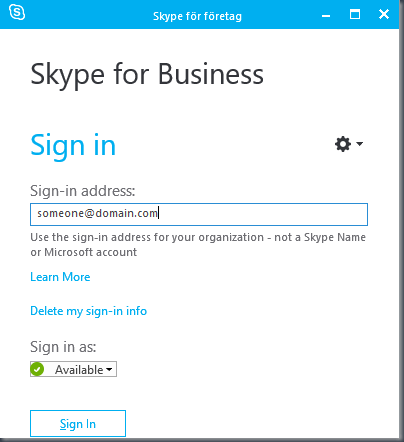
When you deploy for example Office 365 with Skype, the Skype for Business client will start automatically start but it will ask the user to apply the UPN, User Principal Name, to get signed in, like the picture.
In our case this was not very user-friendly so we needed to solve this
Solution
I found a couple of registry key with Sysinternals tools procmon.exe and created a registry file to import. The problem was that some of the keys needed the UPN, so this ended up with a PowerShell script.
Note! This script is totally without error control, and may or may not work in your environment, it is depended on your setup and configuration. This is primarily written for Office 365 and not on-prem services.
Anyway this is the script we used and deployed to the users, and the script should automatically adopt to your environment without changes. The script can also be found on my Github
#Get the current domain
$domain = [System.DirectoryServices.ActiveDirectory.Domain]::GetCurrentDomain()
$domain = “DC=$($domain.Name.Replace(‘.’,’,DC=’))”
#Get the current username and SID
$CurrentUsername = $env:USERNAME
$CurrentUserSid = [System.Security.Principal.WindowsIdentity]::GetCurrent().User.Value
#Time to connect to a domain controller and perform a ldap search with either current username or SID
#Only one object will be returned
$Searcher = New-Object DirectoryServices.DirectorySearcher
$Searcher.Filter = “(&(objectCategory=person)(objectSid=$($CurrentUserSid)))”
#$Searcher.Filter = “(&(objectCategory=person)(cn=$($CurrentUsername)))”
$Searcher.SearchRoot = “LDAP://$($domain)”
$User = $Searcher.FindOne()
$CurrentUpn = ([ADSI]$User.Path).userPrincipalName
If ($(Test-Path -Path “HKCU:\Software\Microsoft\Office\15.0\Lync”) -eq $False) { New-Item “HKCU:\Software\Microsoft\Office\15.0\Lync” }
New-ItemProperty “HKCU:\Software\Microsoft\Office\15.0\Lync” -Name “FirstRun” -Value 1 -PropertyType “DWord” -Force
New-ItemProperty “HKCU:\Software\Microsoft\Office\15.0\Lync” -Name “SavePassword” -Value 1 -PropertyType “DWord” -Force
New-ItemProperty “HKCU:\Software\Microsoft\Office\15.0\Lync” -Name “ServerSipUri” -Value $CurrentUpn -PropertyType “String” -Force
New-ItemProperty “HKCU:\Software\Microsoft\Office\15.0\Lync” -Name “ServerUsername” -Value $CurrentUpn -PropertyType “String” -Force
New-ItemProperty “HKCU:\Software\Microsoft\Office\15.0\Lync” -Name “IsBasicTutorialSeenByUser” -Value 1 -PropertyType “DWord” -Force
[Update] Note! If you have had Lync/Skype for Business on-prem and extended your active directory schema you can just populate the ad attribute “sip-proxyadress”. Thanks Johan Dahlbom for the reminder
Happy Skype deployment, please comment if this works or not for you!
 DeployWindows
Leave a comment