I know some of you out there love shortcuts and some shortcuts are hard to find for example Control Panel, I’ll give some tips
Want to start the Action Center? Just type
control.exe /Name “Microsoft.ActionCenter”
If you for example want to start Screensaver Settings directly you can type
control.exe desk.cpl,screensaver,@screensaver
Some of these shortcuts are self explained, but if you see something in the control panel you want to create a shortcut for, try following these steps to learn how to start the View Available Networks
Browse to the registry key HKLM\Software\Microsoft\Windows\CurrentVersion\Explorer\ControlPanel\NameSpace

Browse the list with GUIDs until you find the one you are looking for, copy the GUID
Select the key HKEY_CLASSES_ROOT\CLSID and press CTRL+F to search for the GUID

Browse the keys below the GUID and look for the key Command
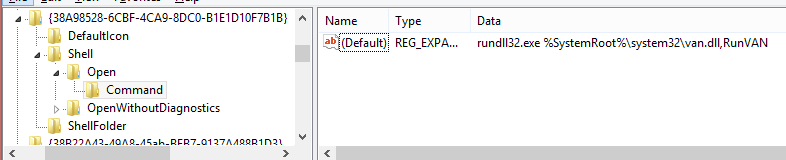
Copy the command and create your shortcut – Done!
Some nice resources
Executing Control Panel Items: http://msdn.microsoft.com/en-us/library/windows/desktop/cc144191(v=vs.85).aspx
How to Register Executable Control Panel Items: http://msdn.microsoft.com/en-us/library/windows/desktop/hh127450(v=vs.85).aspx
Implementing Control Panel Items: http://msdn.microsoft.com/en-us/library/windows/desktop/cc144185(v=vs.85).aspx
 DeployWindows
Leave a comment